
Guest Guide - Using Riverside.com
Welcome to the show!
We’re excited to have you as a guest on The Retirement Café podcast and want to ensure that you have the best possible experience.
Please follow these setup and preparation steps to make sure you look, sound, and feel your best when you’re on the show. Remember, we capture video as well as audio to share on our YouTube channel.
Getting started
Please check off these steps as you prepare for your upcoming interview:
Find a quiet place away from distractions
Make sure your computer is plugged in - use a Chrome browser that is up-to-date
Connect your headphones/earphones and ideally a microphone (the mic in your headphones will work just fine)
Check your internet connection. Go to https://www.speedtest.net/ and run a test (you’re looking for upload speeds of above 5mbps)
Check your privacy settings to ensure that your internet browser (e.g. Google Chrome) has permission to access your camera, microphone and screen sharing
On the day, remember to turn on ‘Do Not Disturb’ and close all other applications and tools that don’t need to be open
What you will need
1. Internet
Wired if possible
2. Microphone
We highly recommend using a microphone that you connect via USB. Plug this in before connecting to Riverside.fm.
Alternatively, your computer’s microphone should work fine
3. Headphones or a headset
This is a must; it helps to remove any echo and improve the overall audio quality.
Wearing headphones with a dedicated microphone, such as iPhone headphones, works well.
4. Lighting
Ensure any natural light is coming onto your face instead of shining behind you.
If you have one light, position it at an arm’s length in front of you
5. Camera
This can be the webcam built into your computer
Have your computer at head height, so that we can see you face-on instead of looking up your nose or over the top of your head!
How to join the interview
Click on the link sent to you to join the interview on Riverside.com. Make sure you’re using Chrome.
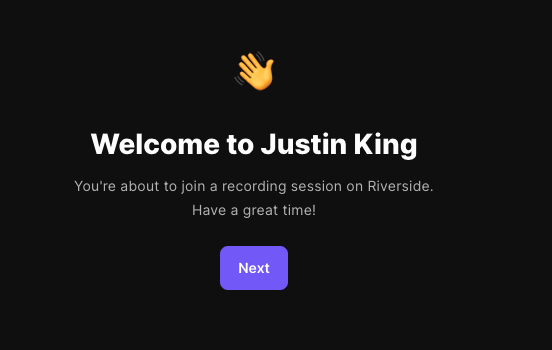
STEP 1:
When you first join the interview, you’ll see this window.
Simply click Next to get started.
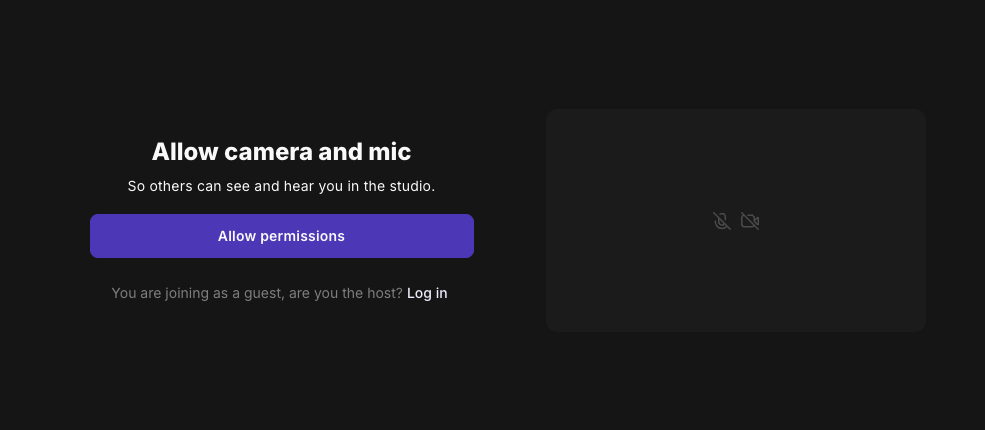
STEP 2:
Next, allow Riverside to access your camera and microphone.
Simply click ‘Allow permissions’ so the first pop-up box appears.
STEP 3:
Give permission for Riverside to use your camera and headphones, so check those shown on the pop-up box are the correct ones, then select when you would like Riverside to access them.

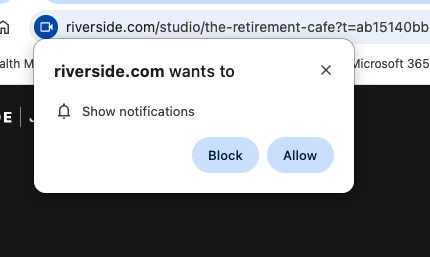
STEP 4:
Choose whether you’d like Riverside to show you notifications.
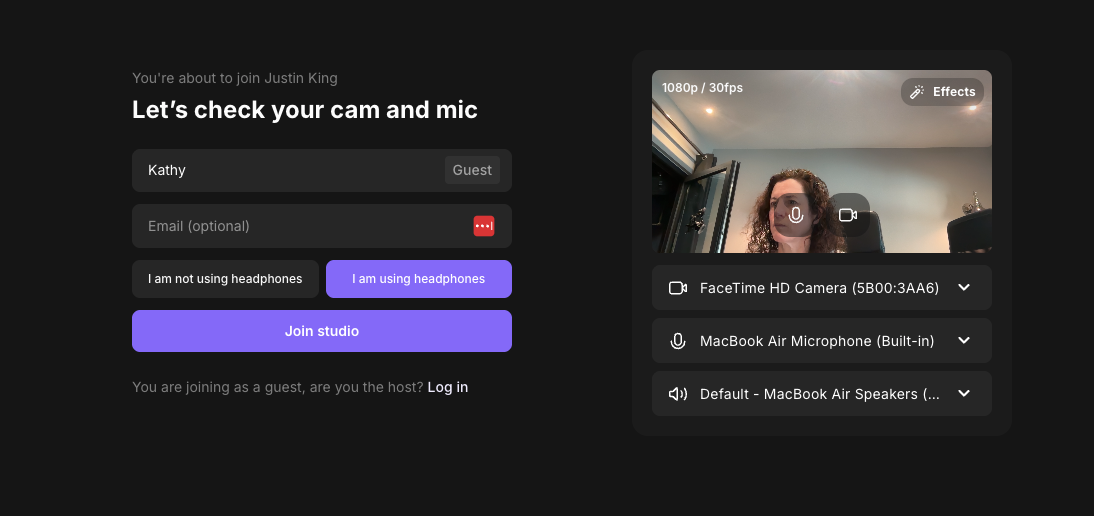
STEP 5:
Finally, enter the name you want to be displayed during the interview.
Click ‘I am using headphones’ if you have them plugged in.
Click ‘Join studio’ to to join the video meeting.
Any questions?
Hopefully that all makes sense but do drop one of the team an email or call us on 01425 279212 if you have any questions.